
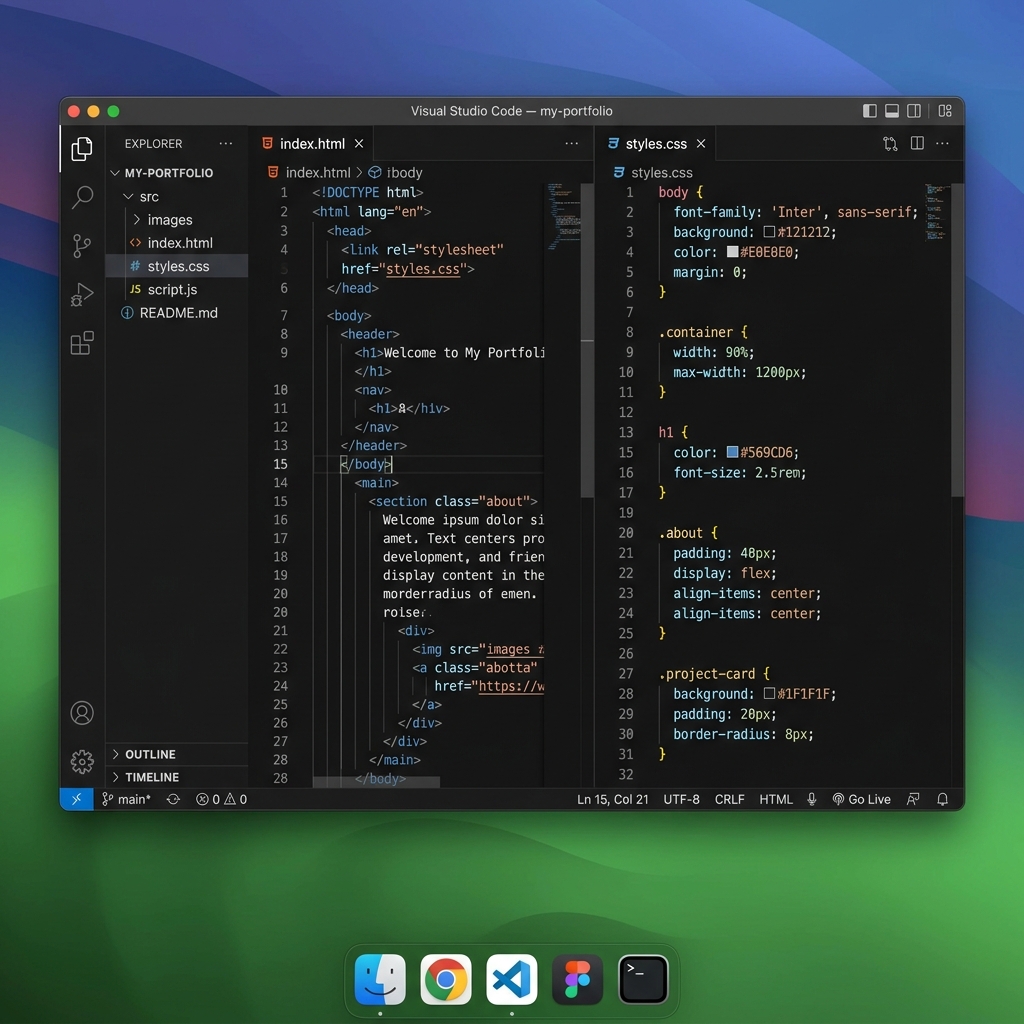
Visual Studio Code (VS Code)
Visual Studio Code (VS Code)
- Download from Visual Studio Code
REMARK
- Visual Studio Code is available for macOS, Windows, and Linux. Make sure to select the appropriate version for your operating system when downloading from the official Visual Studio Code website.
Installation
Windows
- Download the VS Code User Installer (
.exe) from the official website. - Run the installer and follow the setup wizard.
- On the Select Additional Tasks step, we recommend enabling:
- Add "Open with Code" action to Windows Explorer file context menu
- Add "Open with Code" action to Windows Explorer directory context menu
- Add to PATH (enabled by default)
- Click Install and then Finish to launch Visual Studio Code.
macOS
- Download the Universal
.zipfile for macOS. - Open the downloaded
.zipfile to extractVisual Studio Code.app. - Drag
Visual Studio Code.appinto your Applications folder. - Launch VS Code from Applications or Launchpad.
Linux
- Download the
.debpackage (Debian/Ubuntu) or.rpmpackage (RedHat/Fedora). - Install the package via your distribution's software center or terminal (e.g.
sudo dpkg -i code_*.deb).
LANGUAGE
If VS Code opens in a language other than English, or if you want to switch languages:
- Press
CTRL+SHIFT+P(macOS:CMD+SHIFT+P) to open the Command Palette. - Type
Configure Display Languageand pressEnter. - Select
English (en)from the list and restart VS Code.
Extensions
Extensions are tools and add-ons that import extra functionalities into VS Code to make your web development workflow significantly easier and faster.
To open the Extensions View:
- Click the Extensions icon on the Activity Bar on the left side of the window, or press
CTRL+SHIFT+X(macOS:CMD+SHIFT+X).
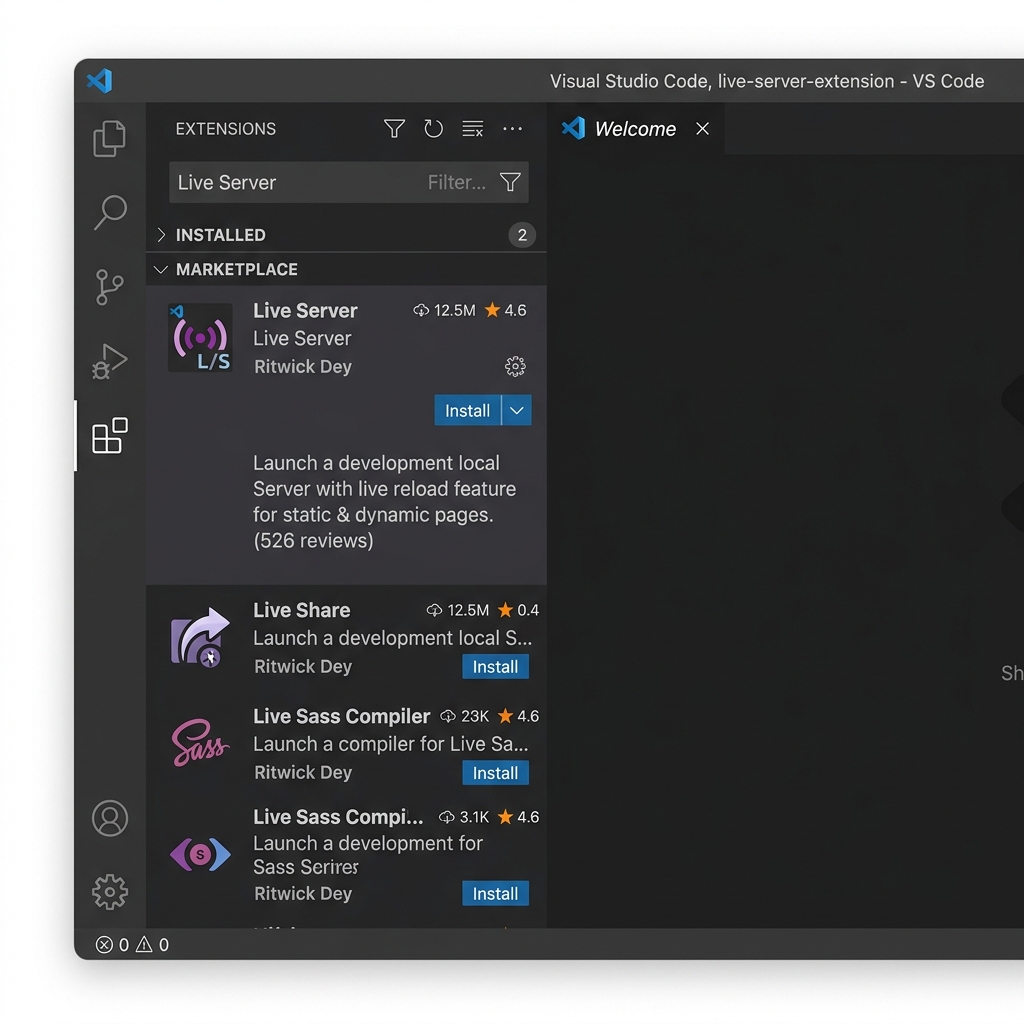
Guide: Installing & Using Live Server
Live Server is an essential extension for web developers. It launches a local development server with a live reload feature for static and dynamic pages. As soon as you save changes in your HTML or CSS file, your browser automatically refreshes to display the updated page!
How to Install Live Server:
- Open the Extensions view (
CTRL+SHIFT+X/ macOS:CMD+SHIFT+X). - In the search box, search for
Live Server. - Locate Live Server created by Ritwick Dey.
- Click the blue Install button.
How to Use Live Server:
- Method 1 (Editor Right-Click): Open any HTML file (e.g.
index.html), right-click anywhere inside the code editor, and select Open with Live Server. - Method 2 (Status Bar): Click the Go Live button located in the status bar at the bottom right corner of the VS Code window.
- Method 3 (Keyboard Shortcut): Press
ALT+LthenALT+O(macOS:CMD+LthenCMD+O) to start, orALT+LthenALT+C(macOS:CMD+LthenCMD+C) to stop.
When Live Server is running, your web browser will open at http://127.0.0.1:5500/filename.html. Every time you edit and save (CTRL+S / macOS: CMD+S), your changes immediately appear in the browser without needing a manual refresh.
Other Essential Extensions
Emmet (Built-in)
- Emmet is built into VS Code by default—no separate installation required!
- It speeds up writing HTML and CSS using shorthand syntax (e.g. typing
!and pressingTabgenerates a full HTML5 page template;p.introexpands to<p class="intro"></p>).
Color Highlight
- Highlights coded colors (Hexadecimal, RGB, RGBA, HSL, color names) in your CSS and HTML files with their actual color background.
- Installation: Search for Color Highlight by Sergii N in the Extensions view and click Install.
Key Features
Working with Folders & Files
- Always open a project folder rather than individual files:
- Go to File > Open Folder... (
CTRL+KCTRL+O/ macOS:CMD+O).
- Go to File > Open Folder... (
- The Explorer view (
CTRL+SHIFT+E/ macOS:CMD+SHIFT+E) displays all files and subfolders in your active workspace folder.
Code Formatting (Format Document)
- Format HTML, CSS, and JavaScript source code cleanly:
- Press
SHIFT+ALT+F(macOS:OPTION+SHIFT+F), or right-click inside the editor and choose Format Document.
- Press
- Format on Save:
- Open Settings (
CTRL+,/ macOS:CMD+,). - Search for
format on save. - Check the box for Editor: Format On Save. Code will now format automatically on save.
- Open Settings (
Split Screen (Editor Groups)
- View and edit multiple files side-by-side (e.g. HTML file on the left, CSS file on the right):
- Click the Split Editor Right icon in the top-right corner of the editor group, or press
CTRL+\(macOS:CMD+\). - Drag and drop editor tabs between split panes to arrange your view.
- Click the Split Editor Right icon in the top-right corner of the editor group, or press
Keyboard Shortcuts
| Action | Windows / Linux | macOS |
|---|---|---|
| Command Palette | CTRL + SHIFT + P | CMD + SHIFT + P |
| Quick Open File | CTRL + P | CMD + P |
| File Explorer View | CTRL + SHIFT + E | CMD + SHIFT + E |
| Extensions View | CTRL + SHIFT + X | CMD + SHIFT + X |
| Start Live Server | ALT + L ALT + O | CMD + L CMD + O |
| Stop Live Server | ALT + L ALT + C | CMD + L CMD + C |
| Format Document | SHIFT + ALT + F | OPTION + SHIFT + F |
| Toggle Line Comment | CTRL + / | CMD + / |
| Toggle Block Comment | SHIFT + ALT + A | OPTION + SHIFT + A |
| Split Editor Window | CTRL + \ | CMD + \ |
| Toggle Side Bar | CTRL + B | CMD + B |
| Zoom In / Zoom Out | CTRL + + / CTRL + - | CMD + + / CMD + - |
| Multi-cursor editing | ALT + Click | OPTION + Click |